
How to Uncrop a Photo: AI Guide (2026)
If you just cropped a photo in an editing app and haven't closed it yet, you don't need AI — you need undo. But if the crop is already baked in (you exported the file, downloaded it from somewhere, or the original is long gone), there's no button that brings back pixels that were never saved. That's the situation this guide is actually for.
"Uncropping" in that second sense means generating new, plausible image content around your existing photo so it fills a wider, taller, or differently-shaped frame — without stretching or distorting what's already there. It's the same underlying technique researchers call outpainting, just applied to a familiar problem: a photo that's framed too tight for the space you need it to fill.
Skip the reading, try it now
Upload a photo, pick a target ratio, and Photo Extender fills in the missing edges automatically — free to try, no account needed.
Uncrop a photo free →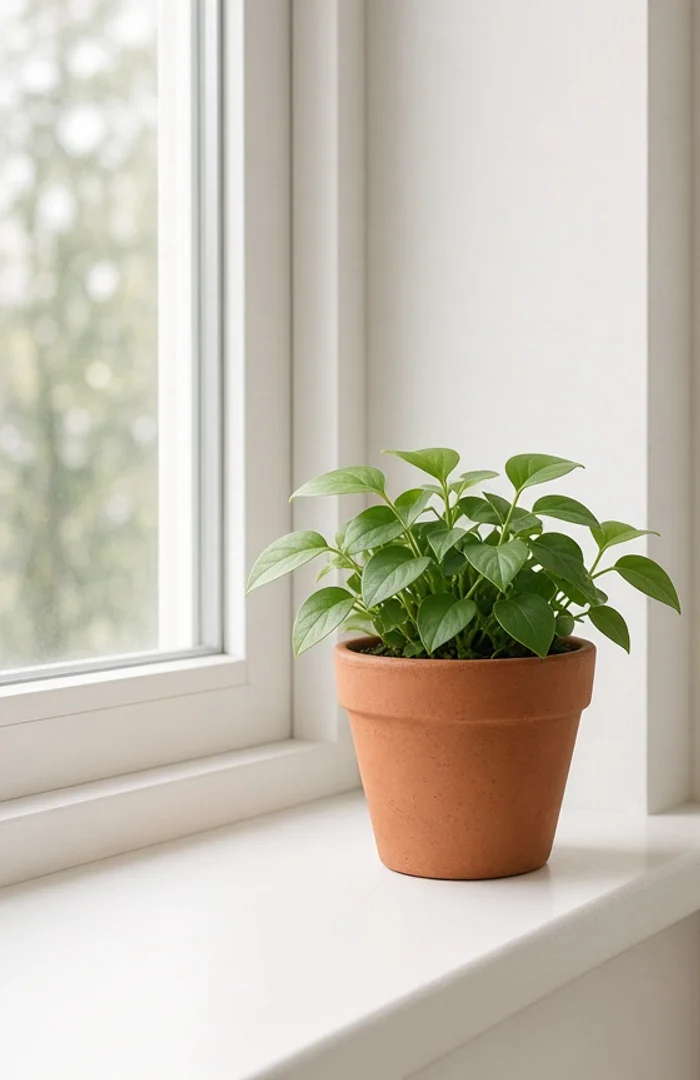
Before — cropped tight
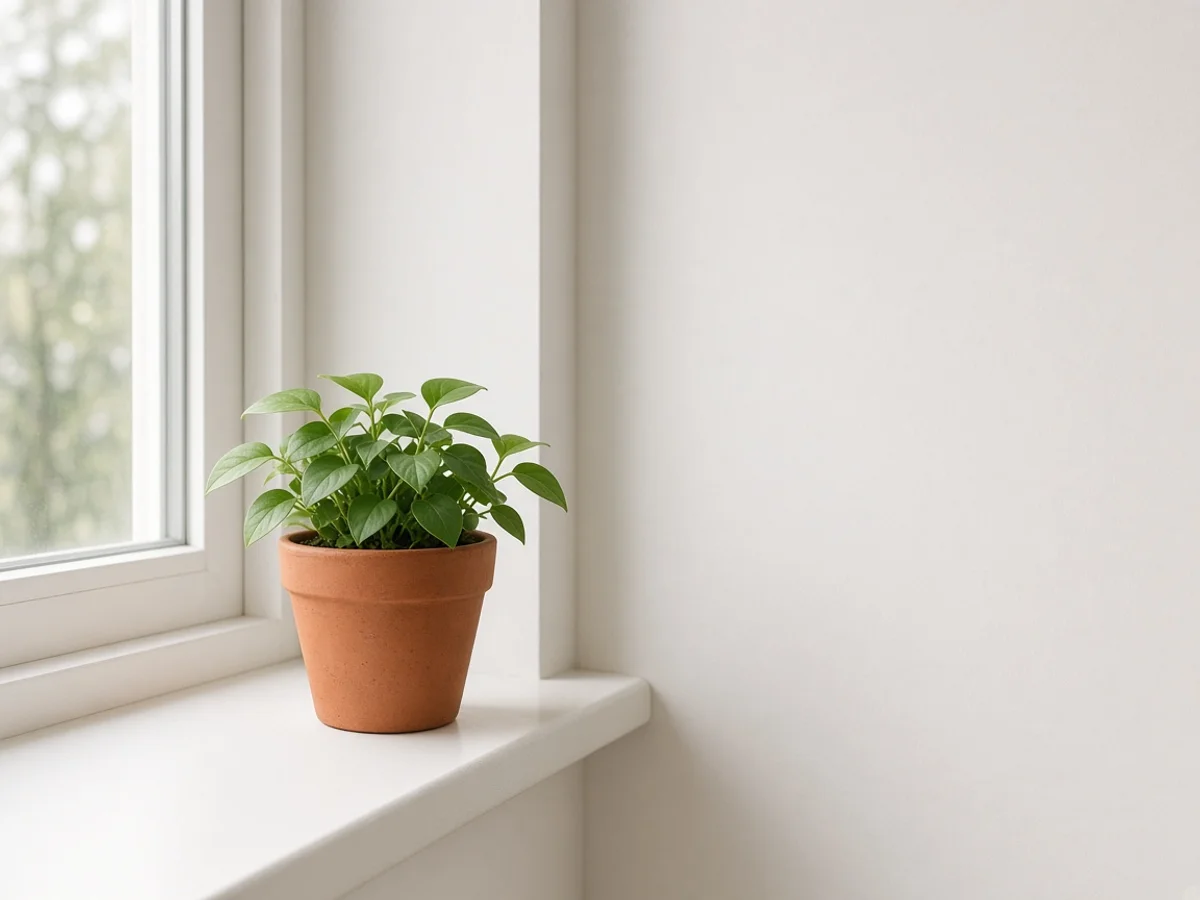
After — uncropped
Two Ways to "Uncrop" a Photo — Pick the Right One First
Searching "how to uncrop a photo" turns up two completely different fixes, and picking the wrong one wastes time:
- Revert to original (free, instant, only works in one situation): If you cropped the photo inside Photos on iPhone, Google Photos, or most editing apps and haven't exported or overwritten it, the app kept your original file in the background. Open the photo, tap the edit menu, and choose "Revert to Original." This deletes the crop (and every other edit) and costs nothing — but it only works if the app still has that original stored.
- AI generative uncrop (works on any photo, but it's a reconstruction, not a recovery): If the original was never saved — the photo was cropped by whoever sent it to you, exported and re-saved, or scanned from print — those edge pixels are gone for good. An AI outpainting tool can't retrieve them; it generates new content that plausibly continues the scene. The result looks natural, but it's an educated guess, not the real background that was there.
The rest of this guide covers the second case, since that's the one people actually get stuck on.
How to Uncrop a Photo with AI (4 Steps)
- Upload the cropped photo. JPG, PNG, or WebP all work. Photos with a plain, continuous background (sky, wall, floor, studio backdrop) reconstruct far more cleanly than busy scenes — keep that in mind if you're choosing which version of a photo to work from.
- Pick the target frame. Choose a preset ratio (1:1, 16:9, 9:16, 4:3) or set a custom width/height. Decide the destination first — a YouTube thumbnail, an Instagram post, a printed frame — rather than expanding "as much as possible."
- Generate and compare variations. The tool fills the new canvas area, matching the existing lighting, color, and perspective. Generate more than once if the first result invents something odd near the edge (a repeated pattern, a stray object) — this is normal for outpainting and usually fixed by re-running rather than accepting the first pass.
- Check the seam at full size before downloading. Zoom into where the original photo meets the new area. Faces, hands, text, and fine repeating patterns (brick, tile, fabric weave) are the most likely places for a visible seam or a slightly-off continuation — plain backgrounds almost never show one.
Common Reasons People Need to Uncrop a Photo
The frame you're uncropping for usually decides how much extra canvas you actually need:
| Use case | Target ratio | What usually needs adding |
|---|---|---|
| YouTube thumbnail | 16:9 | Side background, room for text overlay |
| Instagram post / profile grid | 1:1 | Top/bottom or left/right strip |
| Story / Reel cover | 9:16 | Vertical headroom and footroom |
| Printed frame or poster | Depends on frame size | Whatever the original crop cut off on any side |
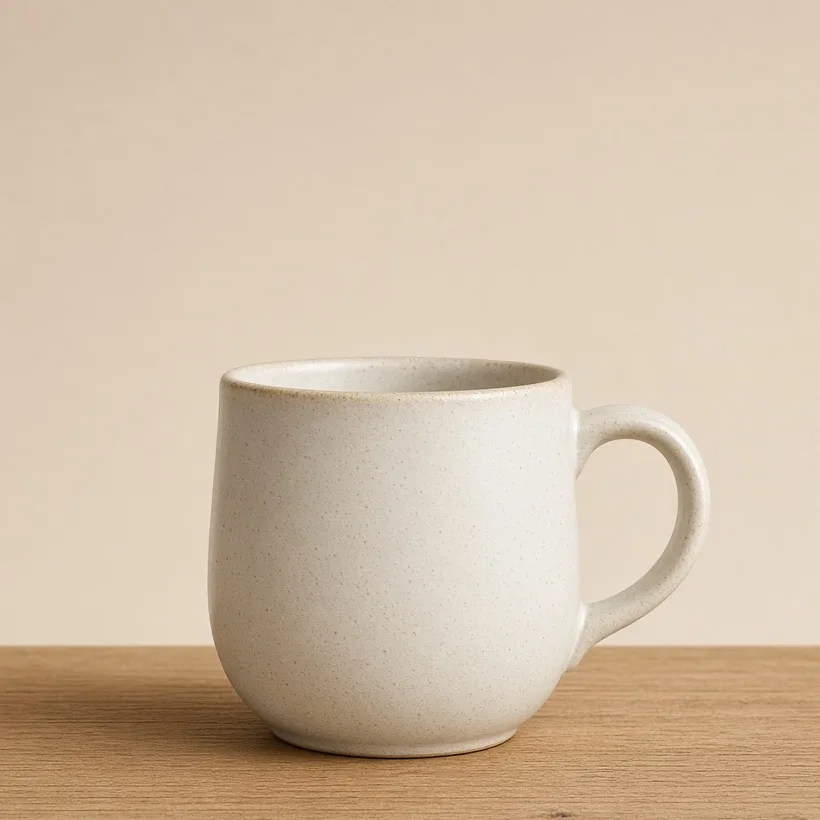
1:1
16:9
9:16
Same source photo, three real crops — the boxes above are actually 1:1, 16:9, and 9:16, not just labeled that way.
What Uncrops Cleanly — and What Doesn't
AI outpainting reconstructs by continuing what it can already see, so the honest answer to "will this look real?" depends on what's near the edge you're extending:
- Easiest: open sky, plain walls, solid-color backdrops, water, grass, out-of-focus backgrounds. There's little detail to get wrong.
- Usually fine, occasionally needs a retry: indoor rooms, streets, landscapes with some structure — the model can lose a straight line (a wall edge, a horizon) if it has to invent a lot of it.
- Hardest: a face or hand cut off right at the frame edge, readable text or logos, tight repeating patterns like brick or checkered fabric. The model has to guess at continuity it can't verify, so this is where seams and odd artifacts show up most.
None of this means those photos can't be uncropped — it means expect to generate a couple of variations and pick the cleanest one, rather than assuming the first result is final.
Frequently Asked Questions
Can AI uncrop a photo back to exactly what it looked like before cropping?
No. If the original pixels weren't saved anywhere, they're gone — AI generates a new, plausible continuation of the scene, not a recovery of the actual background that existed. It's a best guess dressed up to look seamless.
What's the difference between uncropping and just resizing or stretching?
Resizing/stretching squishes or distorts the existing pixels to fit a new shape. Uncropping keeps the original pixels untouched and adds new content around them instead, so the subject doesn't get warped.
Why does my uncropped photo have a visible line where the new part starts?
This usually happens along a hard edge — a wall corner, a piece of furniture, a pattern — where the model didn't have enough visual information to blend smoothly. Regenerating the same crop once or twice, or picking a version with a plainer extension area, usually resolves it.
Can I uncrop a photo on my phone?
Yes — AI uncropping tools run in the browser, so any phone with a modern browser can upload a photo, pick a ratio, and download the result without installing an app.
Does uncropping work on old or low-resolution photos?
It can, but the new area will match whatever resolution the source allows. If the original photo is soft or low-res, the added area will be too — uncropping doesn't sharpen the existing image, that's a separate upscaling step.
Try it on your own photo
Upload any cropped photo and Photo Extender expands it to the ratio you need — no signup for your first try.
Start uncropping →