
How to Convert a Portrait Photo to Landscape (2026)
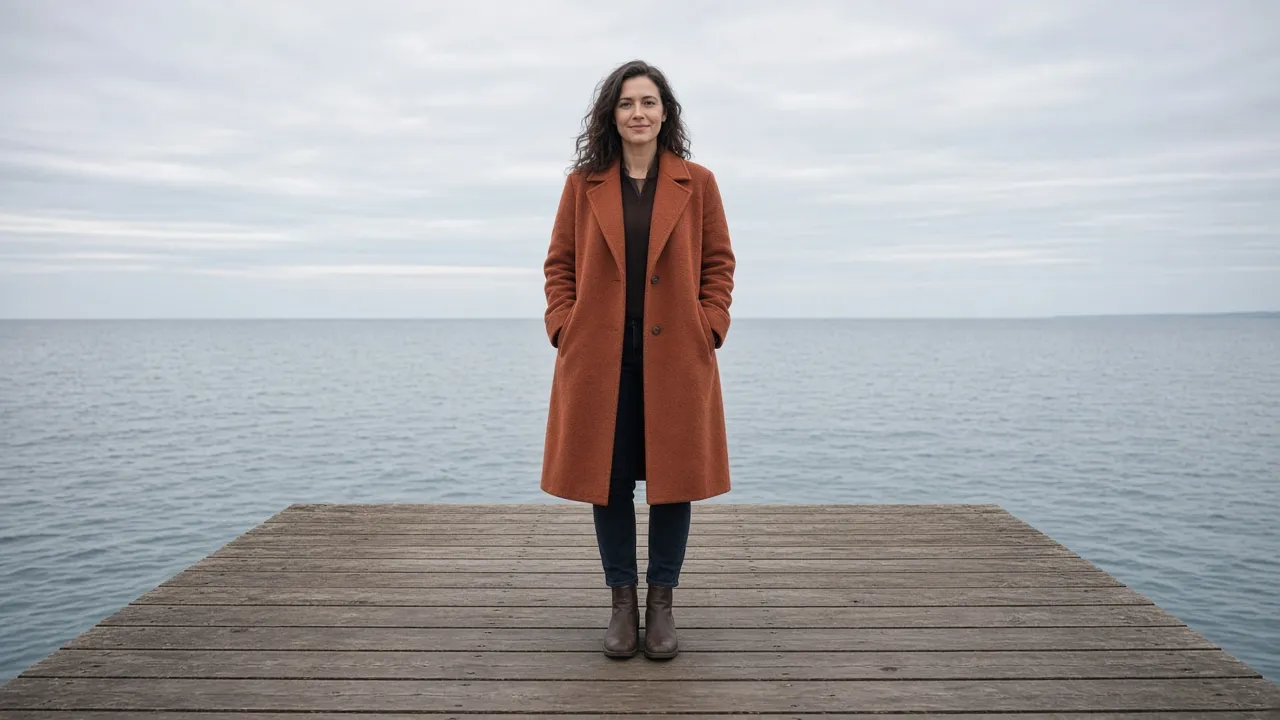
A vertical photo does not become landscape because you rotate it, and it does not become landscape because you squeeze it wider. The person is standing up. A 16:9 crop takes a band across the middle and leaves the head or the boots outside the file. The conversion that keeps them adds background on the left and the right until the frame is wide.
That is a portrait to landscape conversion. The original pixels stay put, and an AI extender paints sea, sky, or wall into the new sides. A blurred panel also keeps every pixel, but the portrait is still sitting in the middle of the frame. Stretching a strip of the edge, then pulling it sideways, bows the horizon and widens the coat. Extend when the picture should look like one wide photo. Blur when the picture has type and invented scenery would be a lie.
Extend the sides, keep the person
Upload a JPG, PNG, or WebP up to 4MB and set 16:9. Try it free without signing up — sign in for free daily credits. The download has no watermark.
Convert a portrait to landscape →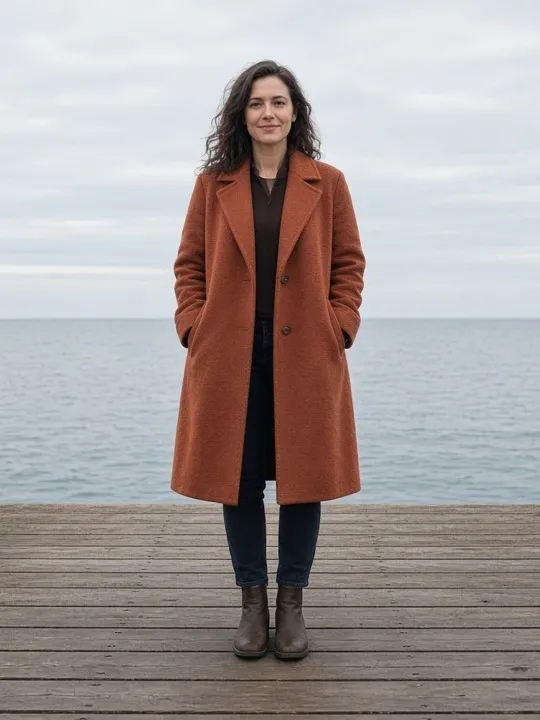
3:4 — she fits. A thumbnail does not.
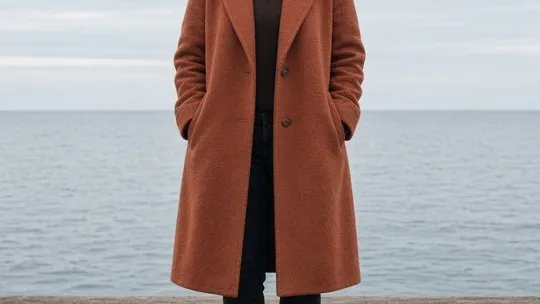
16:9 crop — the frame is landscape. She is not all in it.
Crop, Blur, or Extend
Search results for a portrait to landscape converter mostly offer the first two. They are real options. They are not the same picture.
| Method | What you keep | What you download |
|---|---|---|
| Crop | A horizontal band | A true 16:9 file, missing the top and bottom |
| Blur-fill | Every original pixel | The portrait sitting between soft bars |
| Extend | Every original pixel, plus new sides | One continuous wide photo |
| Rotate 90° | Every pixel, turned on its side | A landscape file of a sideways person |
Crop is the right call when the subject already sits in a band and the sky above them is disposable. Blur-fill — pillarboxing with a softened copy of the same photo — is the honest choice for a screenshot, a poster, or any frame where the pixels have to stay exactly what they were. Extend is the one that can pass as a photo you shot wide. The new water is invented. That is fine for a thumbnail. It is the wrong tool when the real street, product edge, or property line outside the camera is the point of the picture.
How to Convert a Portrait Photo to Landscape
- Start from the camera-roll original. JPG, PNG, or WebP, up to 4MB. A screenshot that already has black bars, a player, or a blurred margin will teach the model to continue those bars. If the original is over 4MB, save a high-quality JPEG. Don't send a tiny export and expect the person to get sharper — extending changes the frame, not the detail that was already there.
- Set the wide ratio, then the direction. In an online photo extender, choose 16:9 for a thumbnail, a slide, or a normal monitor, or 21:9 for a wide banner. Both sides grows the left and the right and leaves the subject in the middle. Start grows only the left and keeps the right edge fixed, so the person sits toward the right. End grows only the right, so they stay on the left and the new side is free for a headline.
- Look at the new edge at full size, then download. Horizons, pier planks, and hair are where a first pass bends. Repeating boards can tile. Letters in the new area come out as almost-letters. If the face moved or softened, that pass redrew the subject — run it again. Generation usually takes about a minute, sometimes closer to two. The file has no watermark.
16:9 — extended to both sides. She is the same size she was in the portrait.
If you already work in Photoshop, Generative Expand does this same job: you still set 16:9, and you still choose which edge grows. Duplicating a strip of pixels and stretching it is the older method, and it is the one that widens the coat. Either way, the new shore is invented.
Thumbnails, Slides, Banners, and a Desktop
The ratio follows the place the file has to fill. One portrait does not become all of them in a single pass.
- YouTube thumbnail. The player wants 16:9. A vertical upload is cropped or boxed. Extend to 16:9 first; 1280×720 is the size YouTube displays, and the shape is what stops the crop. The timestamp sits in the bottom-right corner, so a centered subject on open background survives it better than a face pushed into that corner.
- A 16:9 slide. A portrait dropped into a widescreen deck becomes a column, or the placeholder crops it. Extend once and the photo can bleed to the edges of the slide. If a title has to sit on the picture, grow only one side — End puts the quiet area on the right — and add the words in the deck, not inside the photo.
- A banner or header. 16:9 covers a normal hero. 21:9 is the wider one. Both sides keeps the subject centered. End keeps them on the left when the headline needs the right-hand side. Don't bake the headline into the generated pixels; type in the new area comes out wrong, and you can't edit it later.
- A desktop wallpaper. A normal monitor is 16:9 and an ultrawide is 21:9, so this is the same sideways extension. The menu bar, the dock, and a phone lock screen are a different problem — a lock screen wants the photo taller, not wider. Use the wallpaper guide for the screen, and stop this one at the file.
When the New Sides Should Stay Empty
Extending invents a plausible continuation. It does not recover what the camera never recorded.
- Type, logos, and screenshots. Blur-fill or a flat color. A generated pier under a wordmark is a different design, and the letters themselves smear if they touch the new edge.
- A subject already cut by the frame. If the original portrait slices a shoulder or the top of a head, the model completes a body it didn't see. Crop less, or start from a file where they are fully inside.
- A little margin, not a new orientation. Padding for a headline around a photo that is already wide enough is extending the background, a smaller job than turning the whole frame sideways.
- A tall Story. That is the opposite direction: a wide or square photo that has to become 9:16. Use the Story guide instead of running this conversion backwards and hoping.
Frequently Asked Questions
How do I convert a portrait photo to landscape without cropping?
Upload the original, set 16:9, and extend both sides. The person stays in the frame and the new background continues the scene. A crop makes the file landscape by throwing away the top and bottom. Check the horizon and the hair at full size before you download, and run it again if the face changed.
Is a portrait to landscape converter the same as rotating the photo?
No. Rotate turns the whole picture 90 degrees, so a standing person lies on their side. That fixes a file saved with the wrong orientation. It does not make a vertical composition into a wide one. Crop, blur-fill, and extend are the three conversions that change the frame. Extend is the one that looks like a single wide photo.
What ratio should a vertical photo use for a YouTube thumbnail?
16:9. YouTube displays thumbnails at 1280×720, and a portrait file gets cropped or pillarboxed to reach that shape. Extend to 16:9 first, with the subject away from the bottom-right corner where the timestamp sits. The extender matches the ratio; scale the finished file if you need that exact pixel size.
Can I turn a portrait into a 21:9 banner?
Yes. Choose the 21:9 preset. Both sides keeps the subject in the middle. End grows only the right side, which leaves the person on the left and a quiet area for a headline you add later. 16:9 is enough for a normal slide, a standard monitor, or a YouTube thumbnail. One pass makes one ratio.
Does the landscape file have a watermark?
No. The download has no watermark. You can try it free without signing up — sign in for free daily credits. The upload is a JPG, PNG, or WebP up to 4MB, and the result can be 16:9, 21:9, or another preset such as 1:1, 4:5, or 9:16.
Make the wide file before the platform crops it
Both sides grows the left and the right. Use 16:9 for a thumbnail or a slide, 21:9 for a banner. Try it free without signing up — sign in for free daily credits.
Open the photo extender →