
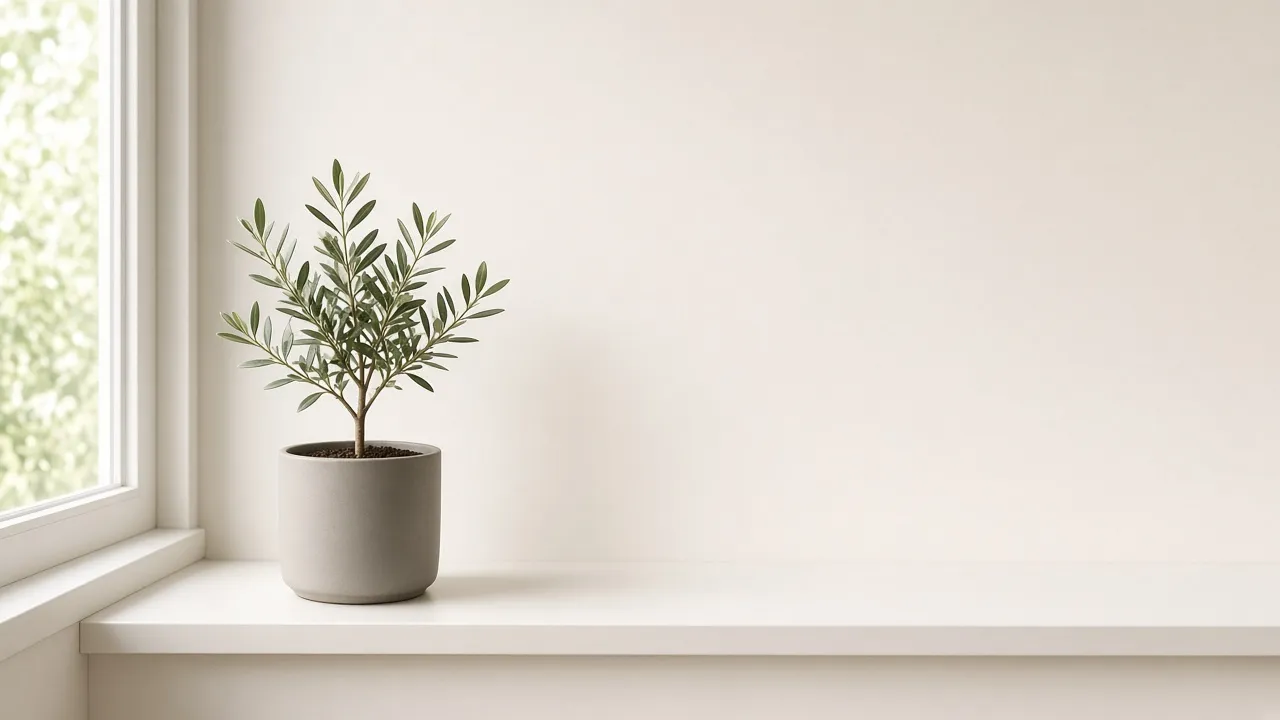
How to Extend a Photo Background With AI (2026)
Most people searching this already have a usable photo. The subject is fine. What's missing is margin — space for a headline on a banner, padding so a marketplace crop doesn't clip the product, or headroom so a Story UI doesn't sit on someone's hair. That is not the same job as swapping the backdrop for a white studio, and it is not the same as stretching the file until it fits 16:9.
Extending a photo background means generating new pixels outside the original frame that continue the scene you already have — wall, sky, tabletop, bokeh — while the subject stays untouched. Photoshop calls this Generative Expand. Online tools call it outpainting. Either way, the new area is a plausible continuation, not recovered reality.
Need the extra space now
Upload a photo, pick a target ratio, and Photo Extender fills matching background around the subject — free to try, no account needed.
Extend a background free →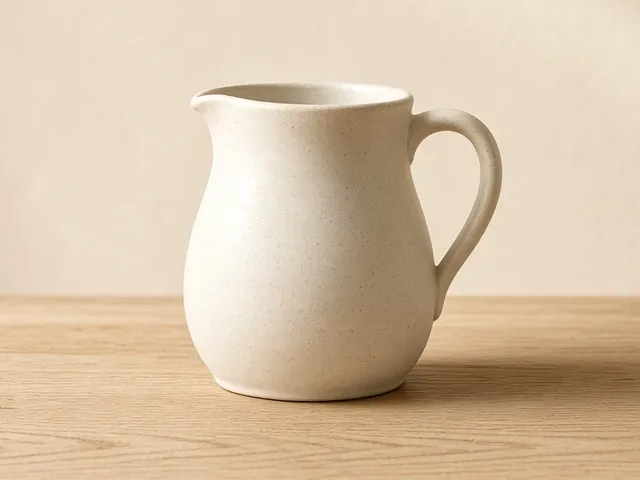
Before — no room around the subject
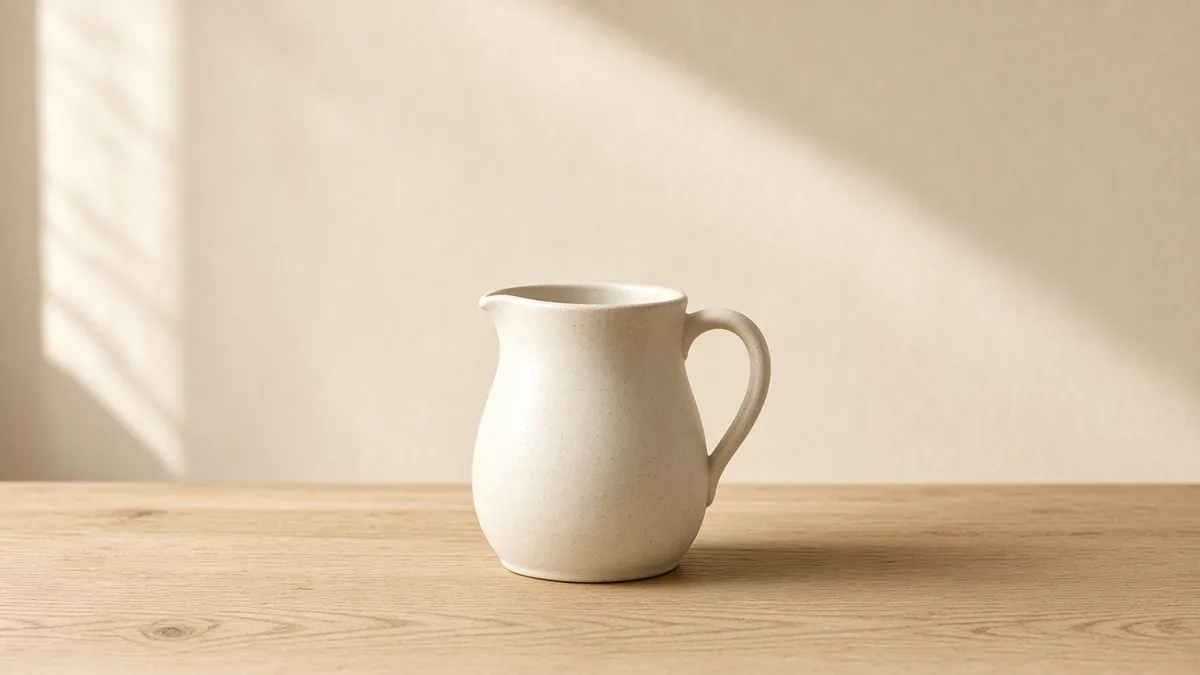
After — matching wall and table added
Extend, Replace, or Stretch — Three Different Jobs
These three searches look similar and send people to the wrong tool. Check which one you actually need before generating anything:
| You want | The right move | Wrong tool |
|---|---|---|
| More of the same wall, sky, or table around the subject | AI background extension (outpainting) | Background remover / replacer |
| A completely different scene behind the subject | Background replacement | Outpainting |
| A larger file of the same crop (more pixels, not more scene) | Upscaling | Stretching the canvas |
If what you actually did was crop too tight and you want the original framing back, that's uncropping — related technique, different problem. This guide is for the case where the photo is complete and you still need empty scene around it.
How to Extend a Photo Background With AI (4 Steps)
- Pick the destination ratio first. A YouTube thumbnail wants 16:9, an Instagram feed post 4:5, a Story or Reel cover 9:16, a LinkedIn or site banner often 16:9 or 21:9. Generating "as much as possible" in every direction wastes the model's attention and usually looks worse than adding only the sides you need.
- Upload the highest-resolution original you have. JPG, PNG, or WebP. Screenshots and already-compressed social downloads give the model less texture to continue, so the new area comes out softer than the source. Simple, continuous backgrounds (studio paper, sky, plaster wall, out-of-focus bokeh) extend far more cleanly than busy ones — if you have two versions of a shot, pick the quieter background.
- Set the ratio and the direction. In an online photo extender, "both sides" is the default when you need even margin. Use one side only when the subject already sits against an edge and you want breathing room on that side alone. If the tool offers a text prompt, leave it empty unless you specifically want something new in the added area — empty usually continues the existing scene; a prompt tends to invent.
- Zoom the seam before you download. Check where the original photo meets the new pixels, at full size. Hair, product edges, horizon lines, and repeating texture (brick, tile, wood grain) are the usual failure points. A second generation of the same crop often fixes a repeated cloud or a slightly bent wall better than trying to clone it out later.
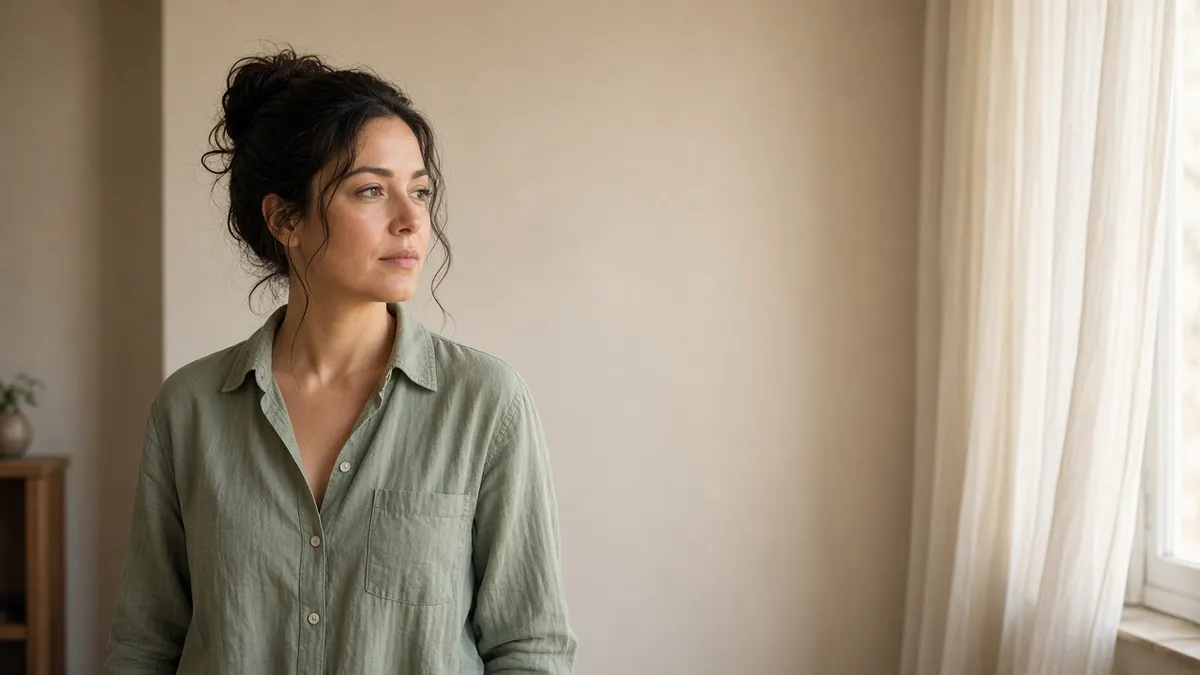
Same idea for a banner: keep the person, add wall so a headline has somewhere to sit.
Which Photos Extend Cleanly — and Which Don't
The model can only continue what it can already see at the edge. That's why results are uneven even when the tool is working correctly:
- Usually invisible: open sky, plain walls, seamless studio backdrops, water, grass, sand, out-of-focus backgrounds. There's little geometry to get wrong.
- Often fine after a retry: indoor rooms, streets, landscapes with some structure. Straight lines (a wall corner, a horizon, a table edge) are where a first pass sometimes drifts.
- Expect artifacts: brick, tile, fences, bookshelves, readable text, logos, a face or hand cut off at the frame. Repeating patterns get copied as a stamp; text comes out as almost-letters. Extend those in smaller steps, or plan to retouch the seam.
One limitation is not technical. The new background is invented. If a real building, storefront, or property stood behind the subject, the model will produce a building — plausible, well-lit, and not that building. For documentary work, journalism, real estate, or any product photo where the setting is part of the claim, this is the wrong tool no matter how seamless it looks. For commercial and social work where the background is atmosphere, it's the right one.
Photoshop Generative Expand vs a Browser Tool
The underlying move is the same: grow the canvas, fill the new area. The difference is control versus speed.
| Photoshop Generative Expand | Browser extender | |
|---|---|---|
| Best for | Print, layered client work, expanding and cropping in one operation | One-off social, listing, and banner crops |
| Setup | Paid Creative Cloud; Crop Tool → Fill set to Generative Expand (easy to miss) | Upload in the browser, no install |
| Prompt | Optional — empty is usually better for continuation | Often none; the ratio does the talking |
| Cleanup | Layers, masking, color-managed export | Regenerate and pick the cleanest variation |
If you already live in Photoshop and need a wide and a tall version of the same asset with logos on separate layers, stay there. If you need a 4:5 product shot with extra paper around it before lunch, a browser photo extender is enough — Photo Extender takes about a minute, works on JPG/PNG/WebP up to 4MB, and doesn't require an account for the first try.
Frequently Asked Questions
How do I extend a photo background without Photoshop?
Upload the photo to a browser outpainting tool, choose the target ratio (and which side to grow), generate, then inspect the seam at full size before downloading. You don't need a prompt if you only want the existing wall or sky to continue.
Is extending a background the same as replacing it?
No. Extension adds matching scene outside the frame and leaves the original pixels alone. Replacement cuts the subject out and puts a new backdrop behind it. If you still want this room, this table, this sky — extend. If you want a different location, replace.
Can AI make a photo wider without stretching it?
Yes. Outpainting generates new image area on the left, right, or both sides instead of squashing existing pixels. The subject keeps its proportions; only the canvas grows. This looks most natural when the background is simple and the subject isn't already touching the edge you're extending.
Why does the extended background look repeated?
The model copied nearby texture — grass, brick, clouds, wood grain — as a tile instead of inventing variation. Generate again, extend one side at a time, or add less canvas in a single pass. Huge jumps on patterned edges are the usual cause.
Does this recover what was actually outside the frame?
No. Anything generated was never photographed. That's fine when the background is atmosphere. It is the wrong tool when the setting has to be factually true — a specific building, a listed property, a documentary scene.
Can I extend a photo background on my phone?
Yes. These tools run in a mobile browser, so you can upload from the camera roll, pick a ratio, and download without installing an app. Zoom the result on the phone before posting — small screens hide seams that show up in a feed.
Try it on your own photo
Upload any photo and Photo Extender adds matching background to the ratio you need — no signup for the first try.
Start extending →