
How to Extend a Photo for a Wallpaper (2026)
You set a wide lake photo as a lock screen. The phone scales it until every pixel of the glass is covered, and the shore on either side is gone. If a second person, a boat, or the edge of the dock had sat off-center, they would go too. Pinch the other way and the whole photo survives as a strip between black or blurred bands. Full screen, or the whole picture — the picker makes you pick one.
Extending a photo for a wallpaper is the third option: a file that is already the shape of the screen, with new sky, water, or wall continuing past the original edges. A phone wants about 9:16. A normal monitor wants 16:9. An ultrawide wants 21:9. The subject stays in the frame, and the lock-screen clock has empty background to sit on instead of a face.
Make the photo the shape of the screen
Upload the original, pick 9:16 for a phone or 16:9 for a desktop, and Photo Extender grows matching background around it. No account for the first try.
Extend a photo for a wallpaper →
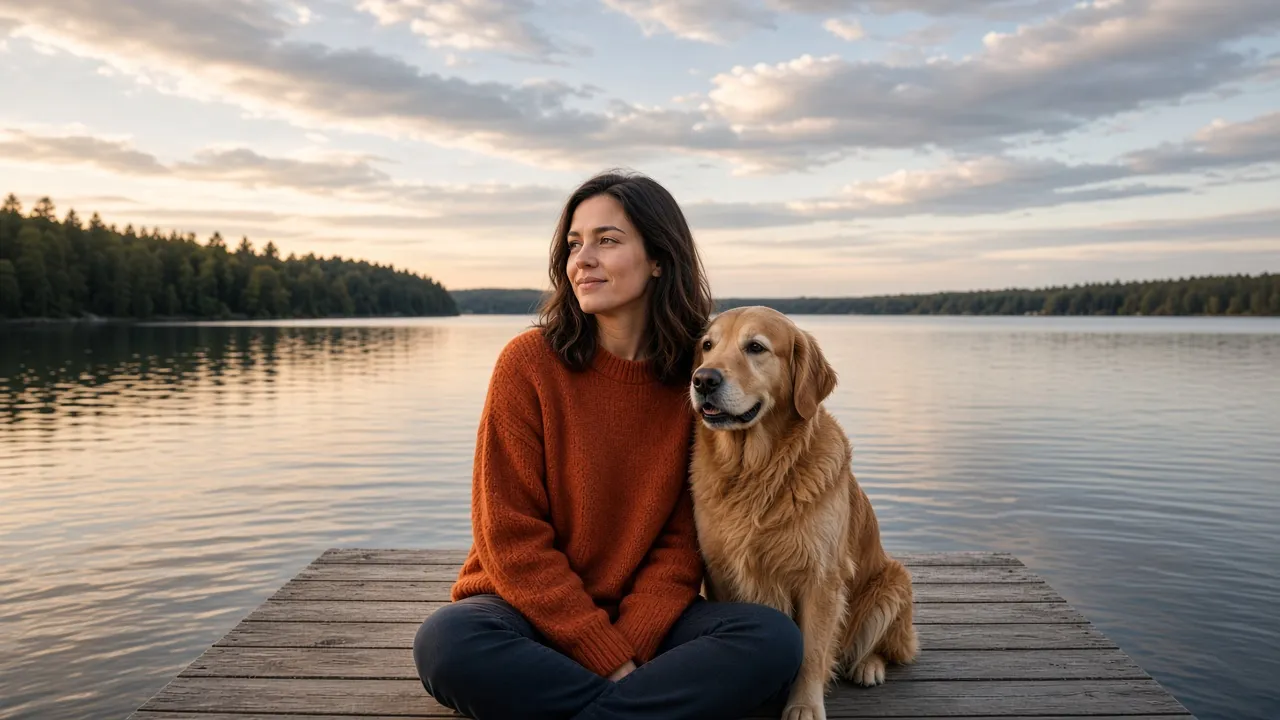
4:3 — the photo you actually took.

Fill crop — the wide lake is gone.
What the Screen Cuts When the Photo Doesn't Match
A wallpaper fills the glass. The photo and the screen are different shapes, so the phone or the desktop has to choose:
- Fill: scale until the screen is covered, and throw away whatever hangs off. On a phone, a 4:3 or 16:9 photo loses its left and right sides. On a monitor, a portrait loses the top and bottom — often the sky, and often someone's hair.
- Fit: show the whole photo. The leftover bands become black, a flat color, or a blurred copy of the same picture. You kept every pixel. You also kept a frame inside the frame.
A centered subject can survive a fill crop. The woman and the dog above still fit, because they were in the middle. The lake that made the photo a landscape does not. The crop fails the moment something you care about sits near an edge: a group, a horizon you wanted, a product on a table, a second face.
| Method | What you actually get | When it's enough |
|---|---|---|
| Fill crop in the wallpaper picker | Full-bleed, sharp, and missing the edges of the original | The subject is centered and you don't want the sides |
| Blurred-edge wallpaper app | The whole photo, sitting on a soft copy of itself | Every original pixel has to stay, and a frame-in-a-frame is fine |
| Extend the frame | Full-bleed, subject still in frame, new background at the edges | The photo should be the entire wallpaper |
Blur is the honest choice for a screenshot, a poster with type, or any picture where invented scenery would be a lie. Extending invents those pixels. If you already cropped too tight and want the old frame back, that's uncropping. If you only need a little margin around a subject, extending the background is the smaller job. A wallpaper is a specific screen, not a vague bit of extra room.
Which Ratio: Lock Screen, Desktop, Ultrawide
Pick the shape before you think about pixels. These are the presets that match real screens:
| Screen | Preset | What gets added |
|---|---|---|
| Phone lock screen and home screen | 9:16 | Height. Most phones are a little taller than 9:16, so the picker still trims a thin strip. |
| Laptop or standard monitor | 16:9 | Width, on a landscape photo only a little; on a portrait, a lot. |
| Ultrawide monitor | 21:9 | Width on both sides. A 16:9 file on this screen gets cropped or pillarboxed again. |
Don't type your iPhone's exact 19.5:9 into a custom box and expect that file back. Photo Extender's custom fields take any two numbers, then generation uses the nearest ratio it can actually make — 9:16, 16:9, 21:9, plus photo shapes such as 4:5 and 3:2. 19.5:9 lands on 9:16. That leftover sliver is why the extra sky belongs at the top: the phone's final trim, and the clock, should land on background.
One photo does not become both wallpapers in one pass. A 16:9 desktop file set on a phone gets its sides cut again. Extend once per screen. 9:16 is also an Instagram Story size, but Stories cover the frame with a username and a reply bar, not a clock — if that's the job, use the Story guide instead of setting the same file as a lock screen and hoping.
How to Extend a Photo for a Wallpaper
- Start from the camera-roll original, not a screenshot of the picker. JPG, PNG, or WebP, up to 4MB. A screen-grab of a wallpaper preview already has black bars, a clock, or a blur baked in. The model will treat those as part of the scene and continue them.
- Tap the screen's preset, then the direction. In an online photo extender, choose 9:16, 16:9, or 21:9. On a phone, choose Start: when the frame is getting taller, Start grows only the top and keeps the bottom edge fixed, so the new sky sits under the clock and the people stay low. Both sides grows up and down evenly — use it when their heads already have room. On a desktop, Both sides grows left and right and keeps the subject in the middle of the monitor. Start and End follow the axis you're changing: top or bottom on a taller frame, left or right on a wider one.
- Zoom the new edge before you download. Horizons, dock planks, hair, and the outline of a dog are where a first pass bends. Repeating water and fence lines can tile. Readable signs in the new area come out as almost-letters. If a face moved or softened, that pass redrew the subject — run it again rather than retouching a different person. Open sky, plain walls, and water are the edges that usually continue cleanly. Brick, blinds, and a face already cut by the original frame usually don't.
- Set it on the device and look at the real lock screen. Long-press the Lock Screen and add the wallpaper; on Android, long-press the home screen and open Wallpapers. Judge it with the clock, widgets, and dock actually drawn on top. A thumbnail hides a seam you'll see every time you pick up the phone. Generation usually takes about a minute, sometimes closer to two.
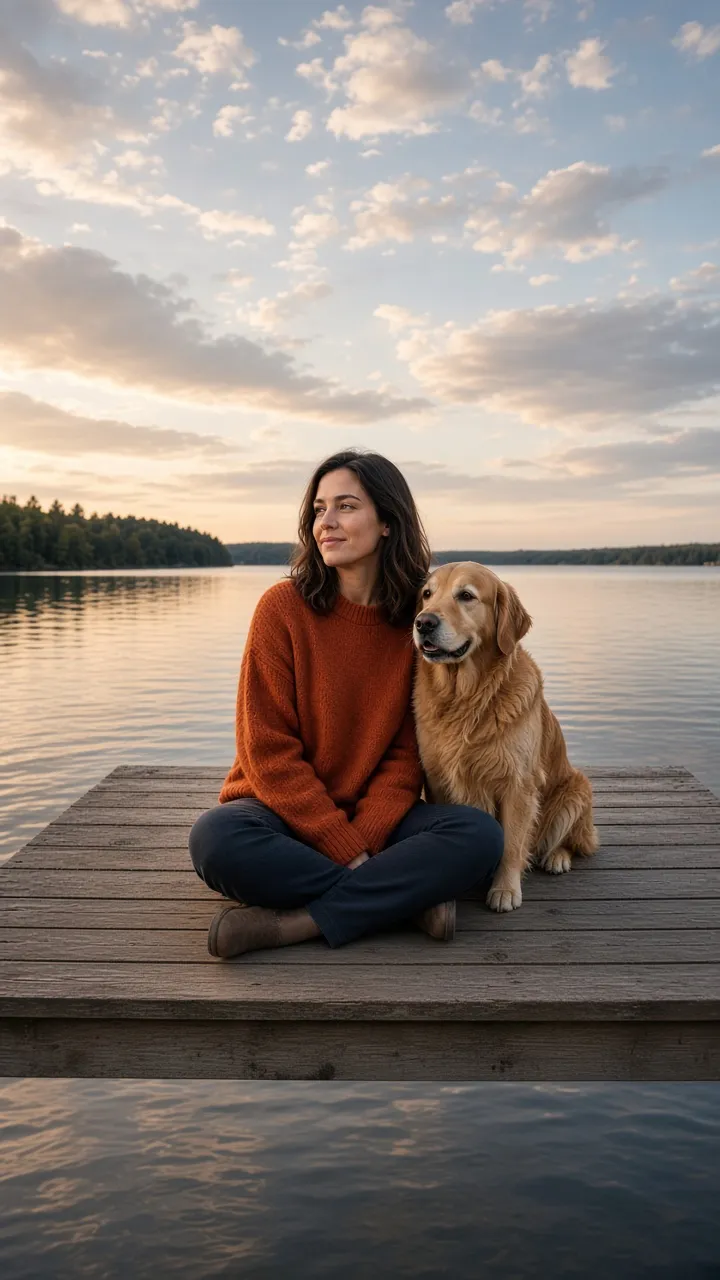
9:16, grown upward — the clock has sky, and they stay in the frame.
If you already live in Photoshop, Generative Expand does this same job: you still set 9:16 or 16:9, and you still have to decide which edge grows. The download from a browser tool is the same kind of file. Either way, the new shore is invented. That's fine for a personal lock screen. It is the wrong tool when the real room, storefront, or property line above the subject is the point of the picture.
Leave Room for the Clock and the Icons
Matching 9:16 stops the phone from cropping the photo. It does not stop the system from drawing on top of it.
- Phone lock screen: a large clock and the date sit in the top third. Widgets can sit just under them. Flashlight and camera hug the bottom corners. Put faces in the lower middle, and let the generated sky be what the clock covers. If a first pass centered them and the clock lands on hair, run it again with Start so only the top grows.
- Phone home screen: icon rows cover the lower half as well. A subject parked at the very bottom disappears behind the apps. The same lower-middle placement survives both screens better than a face at the top.
- Desktop: a Mac menu bar is a thin strip at the top and the Dock is at the bottom. Windows icons often stack down the left, with the taskbar along the bottom. A centered subject with extended water or wall on both sides survives that. A face shoved to the left edge does not.
16:9 — extended sideways, subject still in the middle of the monitor.
Get the Shape Right Before You Chase Resolution
Extending changes the frame. It does not sharpen the person who was already in the photo, and it does not turn a phone snapshot into a native 4K file. The middle of the picture is only as clear as what you uploaded. A 4MB cap also means a huge original may need to be saved down before it will upload — do that as a JPEG at high quality, not as a tiny screenshot.
For a screen, the ratio is what stops the crop. If a large monitor still looks soft after the shape is right, upscale that finished frame. Upscaling first only gives the wallpaper picker a bigger file to slice. A print poster is a different target again: check the printer's size and DPI after you like the composition. A 16:9 wallpaper file is not a poster file, and extending it will not invent print detail that was never there.
Frequently Asked Questions
How do I extend a photo for a wallpaper without cropping it?
Don't hand the wide file to the phone and pinch. Upload the original, set 9:16 for a phone or 16:9 for a desktop, and grow the background outward. Check the new edge at full size, then set the download as the wallpaper. A fill crop is faster when you are happy to lose the sides.
What size should a phone wallpaper be?
Use 9:16. Recent iPhones are closer to 19.5:9, so the lock screen still trims a little off a 9:16 file — put that trim in empty sky, not across a face. Chasing your exact pixel size (1290×2796 and similar) matters less than the shape. A blurred-edge app is the alternative if you need the original photo completely uncut.
How do I keep the lock screen clock off someone's face?
Grow the top, not the bottom. In Photo Extender that direction is Start when you are making the photo taller: the bottom edge stays put and the new sky appears above them. Then look at the real Lock Screen with the clock visible. If the clock still touches hair, there wasn't enough new sky — generate again rather than zooming in until the subject is cropped.
Can one photo be both a phone wallpaper and a desktop wallpaper?
Yes, as two files. Extend once to 9:16 and once to 16:9. A single 16:9 download set on a phone loses its sides again. An ultrawide monitor needs a third pass at 21:9; a 16:9 file will be cropped or boxed on that screen.
Does a wallpaper extender increase resolution?
No. It adds a new strip of background so the shape matches the screen. The subject stays as sharp as the file you uploaded, and a soft photo stays soft in the middle. If the monitor looks fuzzy after the ratio is right, upscale the finished image. Don't upscale first and then let the phone crop it.
Is a blurred wallpaper the same as extending one?
No. Blur keeps your exact photo and fills the gaps with a soft copy, so you always see a picture sitting on a backdrop. Extending tries to make one continuous scene. Use blur for type, screenshots, and anything that must stay pixel-accurate. Use an extender when the photo itself should fill the glass.
Try it on the photo the phone keeps cropping
Pick 9:16 and Start for a lock screen, or 16:9 for a desktop. Photo Extender fills the new edge from the scene you already have.
Extend this photo →