
How to Make a Picture Fit an Instagram Story (2026)
You pick a landscape or square photo for a Story. Instagram fills the screen by zooming in, so elbows, a product edge, or half the group disappear. Pinch out and you get the whole picture floating on a color wash — visible, but not a Story. That crop-or-bars choice is the entire problem.
Making a picture fit an Instagram Story means ending up with a 1080×1920 (9:16) file that is full-bleed: the scene continues above and below the original frame, so Instagram has nothing to chop. Pinch-zoom, a Canva letterbox, and Instagram's own Meta AI Expand are other answers. Only a downloaded 9:16 file also works as a Reel cover, a TikTok, or an ad without doing the job twice.
Fit it to 9:16 in one pass
Upload the original, pick 9:16, and Photo Extender fills matching sky and ground around the subject — free to try, no account needed.
Make a Story-sized photo →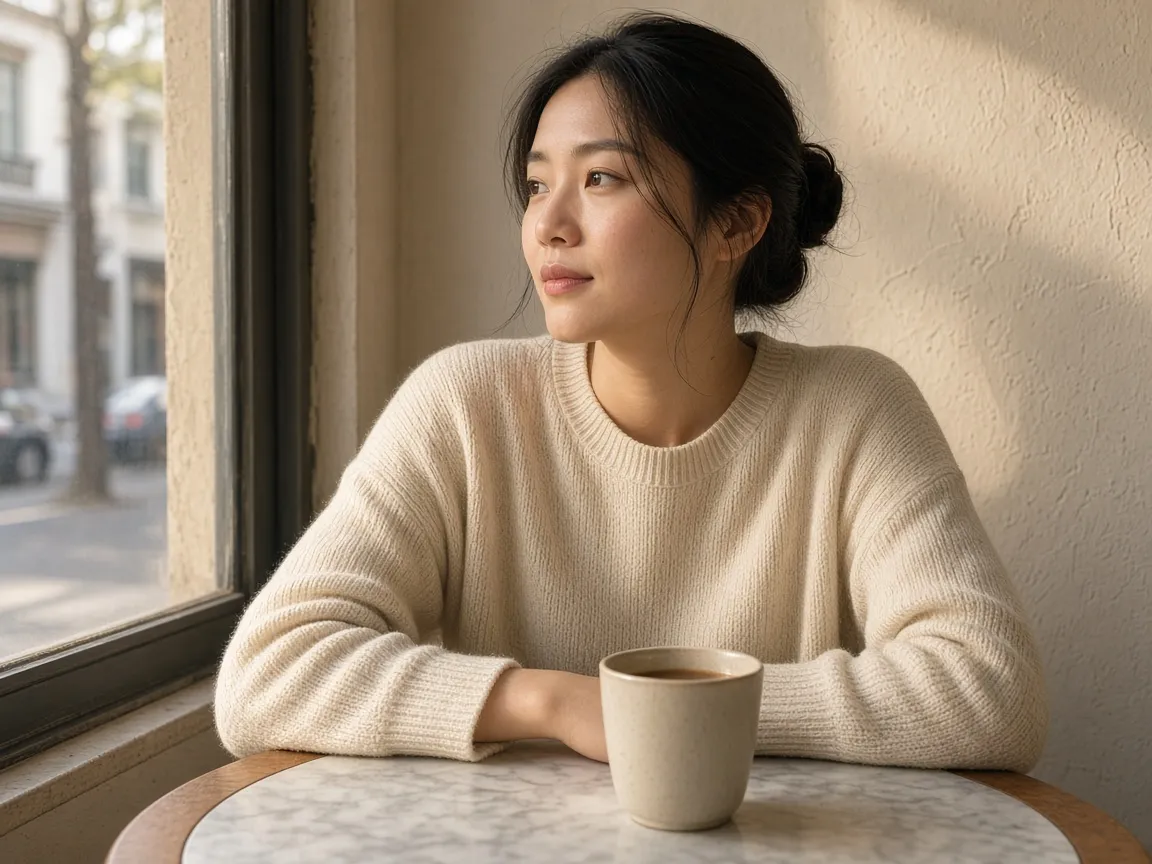
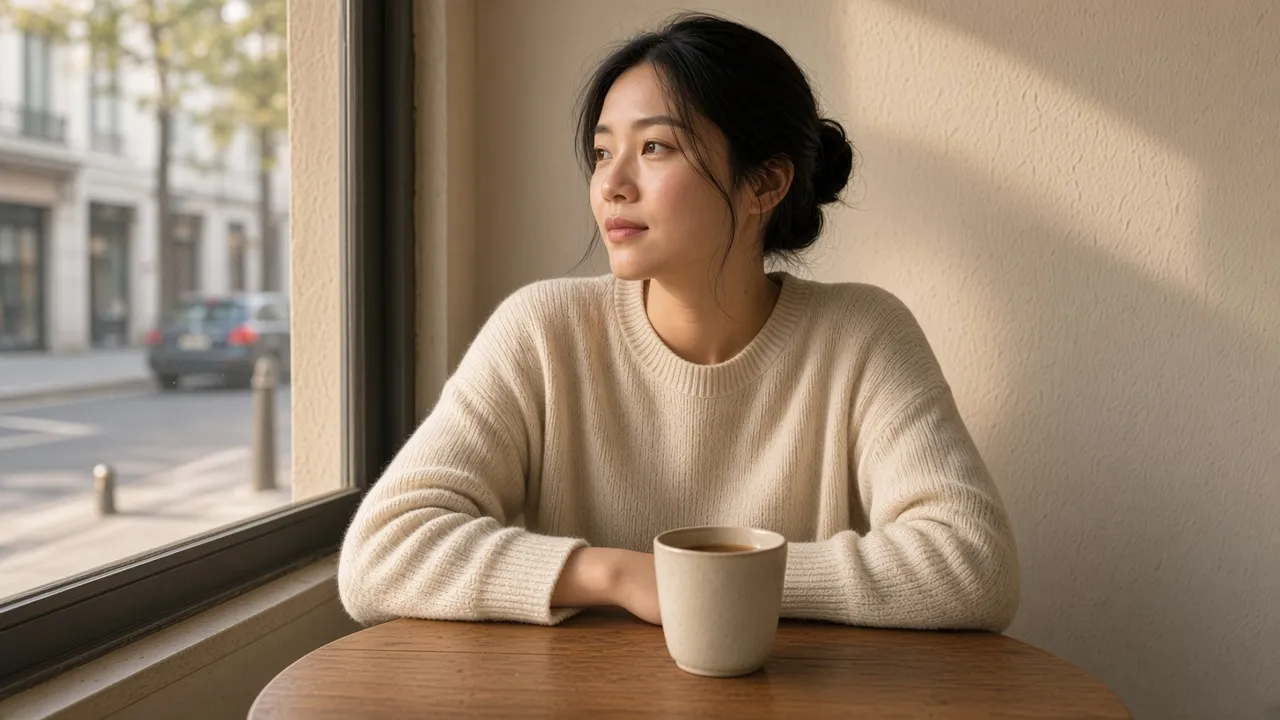
Before — landscape. Instagram will crop this.
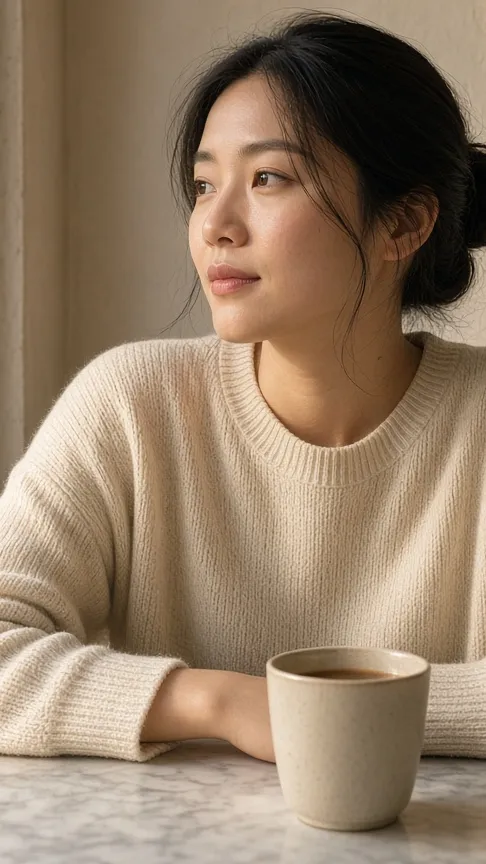
Fill crop — window and table gone
What Instagram Does to a Photo That Isn't 9:16
Stories are a 9:16 canvas. The size Instagram actually wants is 1080×1920 pixels. A phone photo is usually 4:3 or 16:9; a grid post is often 1:1 or 4:5. None of those match, so the app has to choose:
- Fill (the default): scale the photo until every pixel of the screen is covered. Whatever sticks out of 9:16 is gone. That's the "Instagram cropped my Story" complaint.
- Fit (pinch inward): the whole photo stays visible. Empty bands at the top and bottom get a color-matched gradient. You kept the picture; you gave up the full-screen look.
4:5 (1080×1350) is the feed portrait size, not a Story. Uploading a 4:5 file still leaves Instagram ~570 pixels short. Stretching those extra pixels is how faces go wide. If you already cropped too tight in an editor and want the old frame back, that's uncropping — related technique, different job. This guide is for a complete photo that the Story canvas will still eat.
Pinch-Zoom, Letterbox, Meta AI, or Extend
Four ways people solve this. They are not interchangeable:
| Method | What you actually get | When it's enough |
|---|---|---|
| Pinch-zoom in the Story editor | Full photo on Instagram's gradient bars; not full-bleed | Throwaway Stories, posting in 10 seconds |
| Canva / blur-sticker background | Photo sitting on a designed or blurred canvas; still a frame-in-a-frame | Brand colors, text-heavy Stories, collages |
| Instagram Meta AI Expand | Full-bleed inside the app; no 1080×1920 file to reuse | The Expand button is on your account and you only need this one Story |
| AI outpaint to 9:16 | Matching scene generated above and below; downloadable Story-sized file | Creators and shops posting the same asset to Stories, Reels, and TikTok |
Meta AI Expand (the button at the top of the Story composer, when you have it) is the same idea as outpainting: fill the empty bands from context in the photo. Quality varies, it is still rolling out by account, and the result lives in that Story. You cannot drop the same pixels on a Reel, a TikTok, or an ad. If you already design in Canva and want a branded color block, stay there — don't fight a layout with generative fill. If the photo is the Story, extend it.
How to Make a Picture Fit an Instagram Story With AI (4 Steps)
- Use the original file, not a screenshot of the editor. JPG, PNG, or WebP. A screen-grab of a already-pinched Story is a compressed 9:16 with gradient bars baked in; the model will treat those bars as part of the picture. The camera-roll original gives it real texture at the top and bottom edges to continue.
- Set the ratio to 9:16 — not 4:5, not "a bit taller." In an online photo extender, pick the Story preset (or type 1080×1920 if the tool takes pixels). Leave the prompt empty unless you want something new in the added band; empty usually continues the existing sky, wall, or floor. Grow top and bottom together so the subject stays centered — one-sided growth slides the person into a UI overlay.
- Zoom the new sky and the seam before you download. Hairlines, horizons, tabletops, and repeating texture (brick, blinds, tile) are where a first pass drifts. A second generation of the same crop usually beats trying to clone a repeated cloud. The original pixels should look untouched; if the face softened, you uploaded a small file or the tool resampled the whole canvas, not just the new area.
- Export, then keep important things out of the top and bottom ~250px. A correct 9:16 file still wears Instagram's chrome: username and close at the top, reply bar at the bottom. Stickers and link CTAs belong in the middle third. If this asset also goes to Reels, the right-side like/comment column eats more of the frame — don't park a logo there.
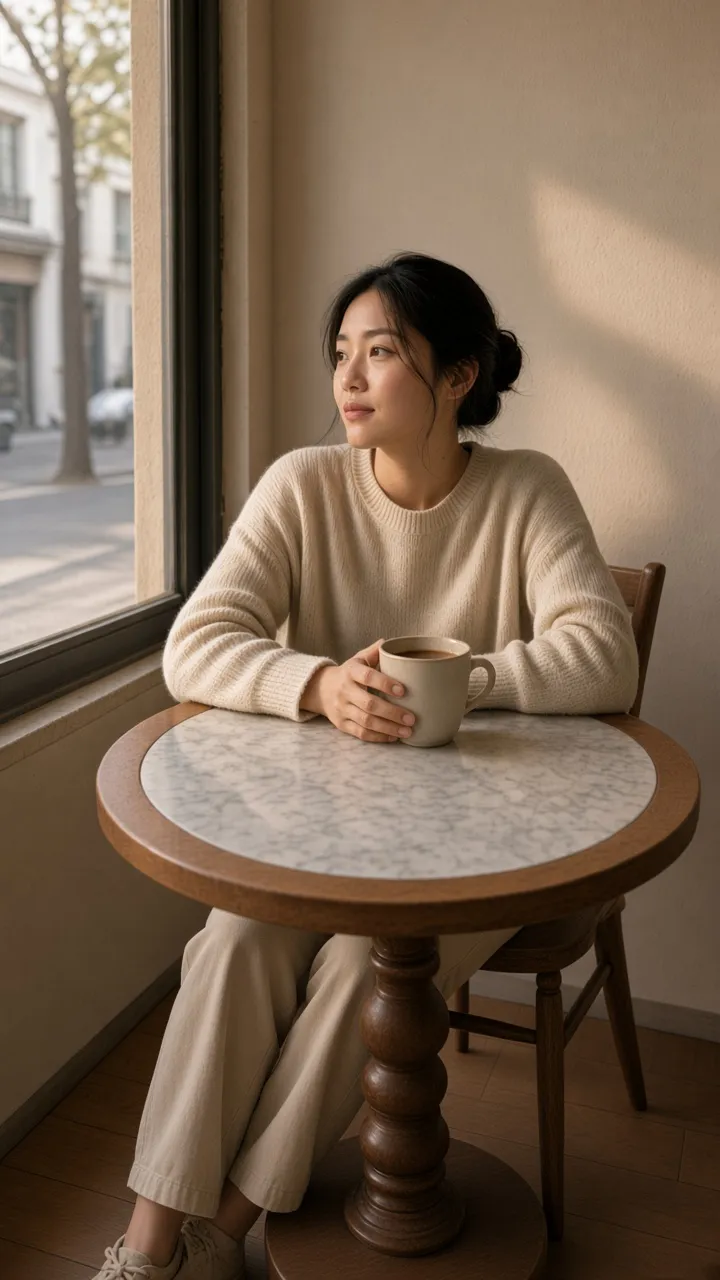
Same photo, 9:16 — subject sits in the middle, where Stories actually show it.
Safe Zones Still Matter After You Fit the Picture
Fitting the picture stops Instagram from cropping the photo. It does not stop the app from drawing on top of it.
- Top ~250px: profile photo, username, timestamp, close. Hair, hats, and overhead product shots get covered here if you grew the canvas too little and the subject sits high.
- Bottom ~250px: reply field, send, likes. Feet, table edges, and price stickers die here.
- Reels add a right-side column (like, comment, share, audio). A Story file reused as a Reel needs a bit of extra margin on the right, or a second generation.
If you only needed a little headroom around a product for a feed post, extending the background to 4:5 is the smaller job. Don't send that file to Stories and hope.
Which Photos Fill a Story Cleanly
The model can only continue what it can already see at the top and bottom edges. That's why some Stories look photographed at 9:16 and others look like a stamp:
- Usually invisible: open sky, plain walls, windows, water, grass, seamless studio paper, out-of-focus bokeh. There's little geometry to get wrong when you add height.
- Often fine after a retry: cafes, streets, rooms with a clear ceiling and floor. Straight lines (window mullions, a horizon, a table edge) are where a first pass sometimes bends.
- Expect artifacts: brick, blinds, fences, readable text, logos, a face or hand already cut off at the top or bottom. Repeating patterns get tiled; text comes out as almost-letters. Grow less in one pass, or retouch the seam.
The new bands are invented. If the real ceiling, storefront, or property above the subject is part of the claim — a hotel room, a listed interior, a documentary frame — this is the wrong tool no matter how seamless it looks. For a cafe photo, a product on a table, or a portrait whose background is atmosphere, it's the right one.
Frequently Asked Questions
How do I make a picture fit an Instagram Story without cropping?
Don't upload a landscape file and hope. Either pinch inward (you keep the photo, you get bars) or generate a 9:16 version first so the scene fills the screen. Upload the original to an outpainting tool, set 9:16, inspect the new top and bottom at full size, then post the download.
What size is an Instagram Story photo in 2026?
1080×1920 pixels, 9:16. Smaller files get scaled up by Instagram and look soft; 4:5 feed portraits (1080×1350) are still too short and will be cropped or padded. Export at 1080×1920 when you can.
Can I fill an Instagram Story without black bars?
Yes. Black or gradient bars appear when the photo is letterboxed (pinch-zoom, "fit" in a resizer). Outpainting fills those bands with matching scene instead of a solid color, so the Story is full-bleed and the subject isn't stretched.
Does Instagram's Meta AI Expand replace a separate tool?
Only if the button is on your account and you don't need the file anywhere else. Expand fills empty bars inside the Story composer. It does not give you a 1080×1920 asset for Reels, TikTok, ads, or Highlights covers. Quality is also a roll of the dice — regenerate in a browser tool if the in-app fill invents a second lamp or a bent wall.
Can I use the same 9:16 file for Reels and TikTok?
Yes, that's the point of downloading it. Keep faces and text out of Reels' right-side icons and the lower caption block. If a logo sits on the right edge, generate once more with extra margin on that side rather than sliding the whole picture over in the editor.
How do I post a full landscape photo on Instagram Story from my phone?
You can run a browser extender from the camera roll, pick 9:16, and save the result — no desktop app. Pinch-zoom is faster if you accept the gradient. Zoom the downloaded file on the phone before posting; small screens hide a repeated cloud that a follower will see full-screen.
Try it on the photo you were about to pinch
Upload any landscape or square shot and Photo Extender builds a 9:16 Story file around it — no signup for the first try.
Extend to 9:16 →