
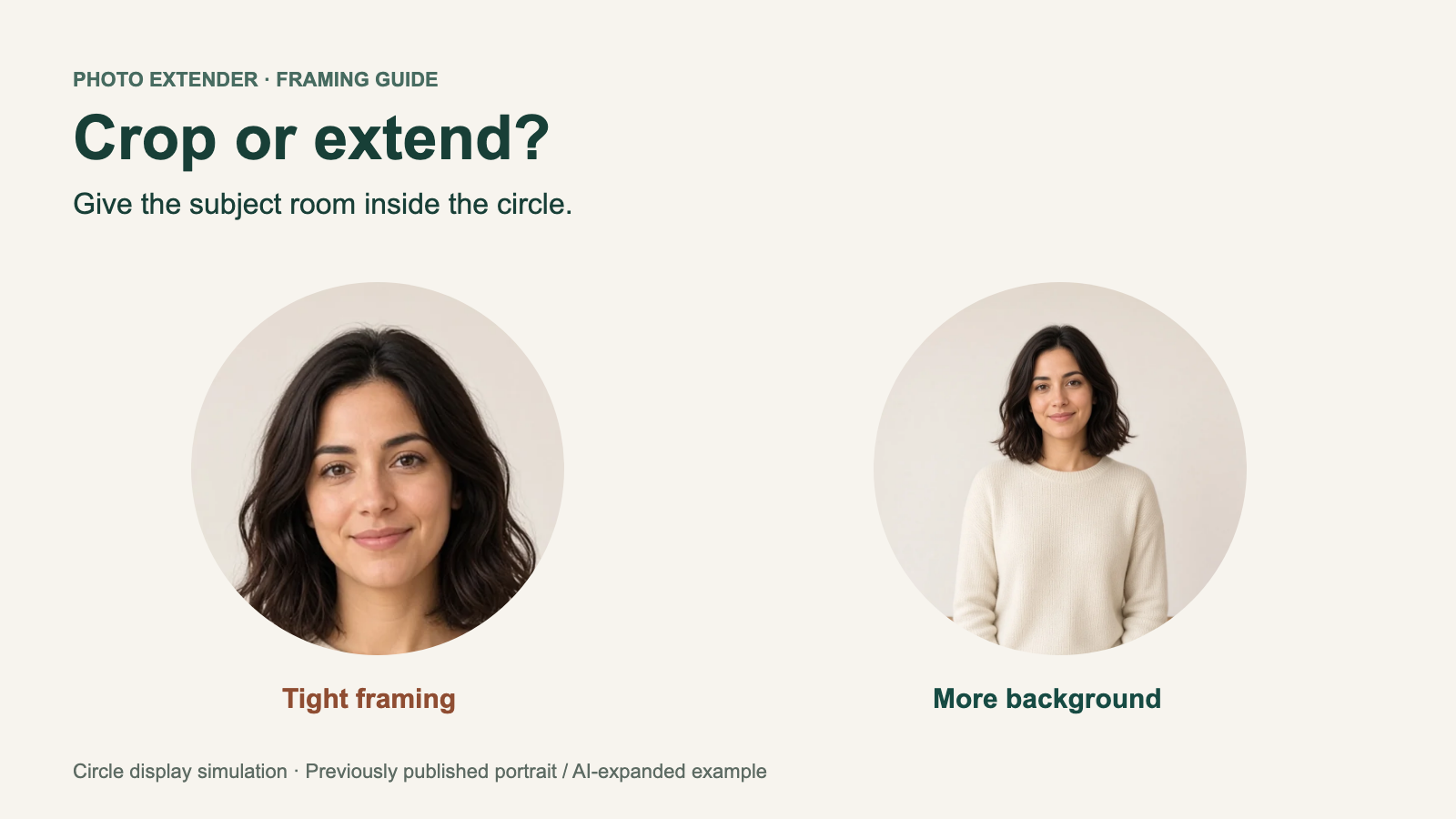
Crop or Extend? Fix a Clipped Discord Avatar (2026)
Your portrait looks fine as a square, but the hair or shoulders disappear when it becomes a Discord avatar. The problem can be the circle inside the square: a square crop keeps four corners that the circular display hides.
Crop when you have room to move the frame. Add space when you need to keep more of the subject. A subject-aware cropper can choose a better region, but it still removes content. Padding preserves the existing picture; AI expansion can continue the background when a visible border would be distracting.
Need more background around your portrait?
Use Photo Extender to try a wider frame, then check the downloaded picture in Discord before saving your avatar.
Open Photo Extender →Crop, smart crop, or extend: what actually changes?
| Method | What it does | Use it when |
|---|---|---|
| Manual crop | You select a region of the existing image. Content outside it is excluded. | The face fits comfortably and the edges are expendable. |
| Subject-aware crop | Detection helps choose the crop position. It does not create missing space. | An off-center subject needs a better crop than the default center crop. |
| Padding | The picture is placed smaller on a larger canvas with a plain or transparent margin. | You need faithful artwork, a logo, or a portrait with no generated changes. |
| AI expansion | A model generates plausible scene content beyond the original boundaries. | The subject needs more breathing room and you want a continuous photographic background. |
A label such as “smart cropper” does not prove a tool detects subjects. For example, Alvseike's Smart Cropper documentation describes movable crop boxes and ratio guides. Treat that as a manual framing mechanism unless the tool documents detection. It is one specific tool with that name, not a definition of every “smart cropper.”
For a documented automatic example, Cloudinary's automatic gravity can select a focal area using subject-based or saliency-based analysis. That helps decide where to crop. It cannot make a tight source photo contain more background. Adobe's Generative Expand workflow instead enlarges the canvas and generates the new area.
The Discord case: a square crop can still lose your hair
Imagine a portrait with the whole hairstyle visible and little room above it. A center square crop may cut some headroom; the round display then hides the upper corners. Moving the crop can help if there is spare background. If the hairstyle already fills the available frame, moving the box only trades one clipped edge for another.
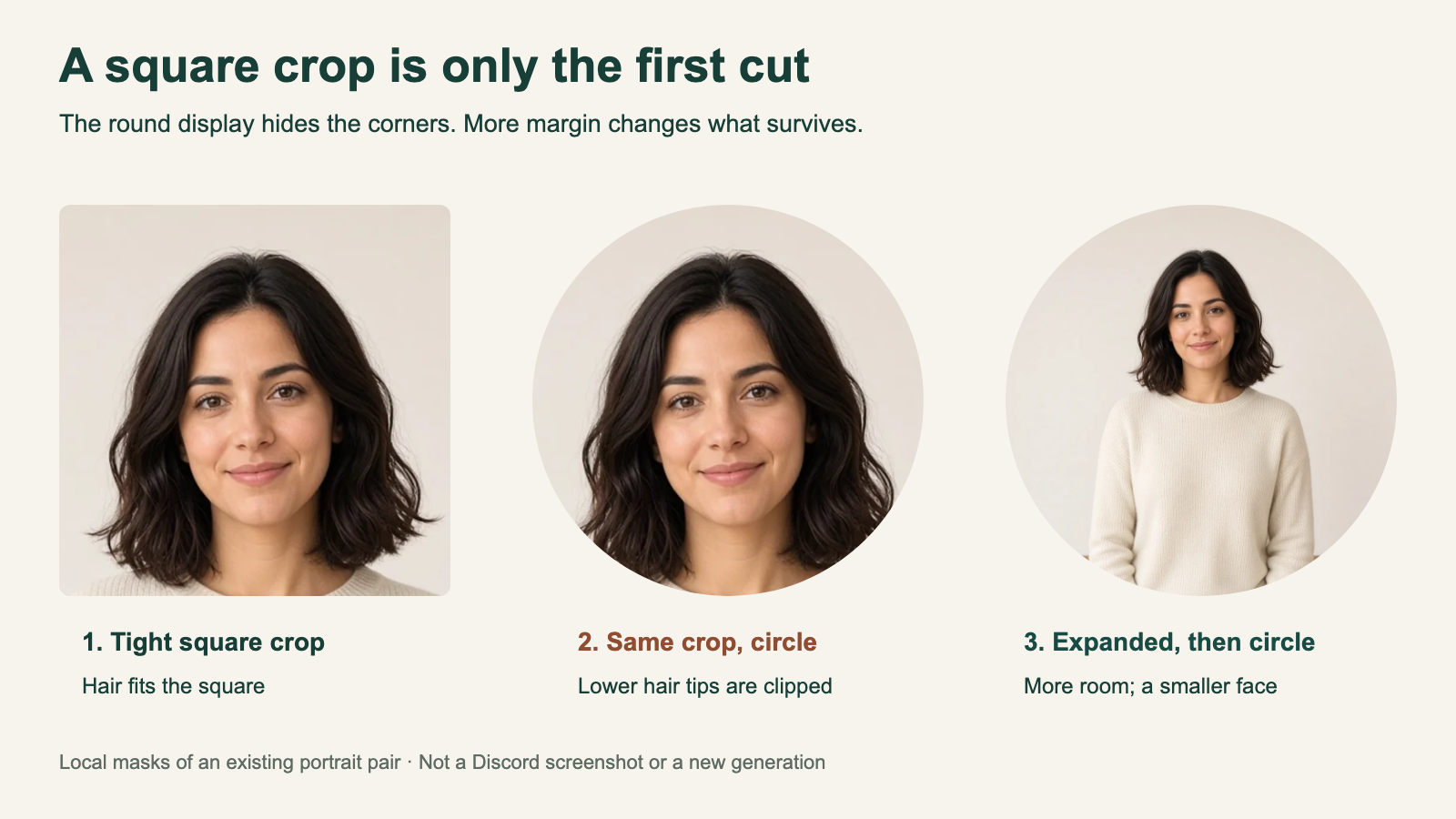
The first panel deliberately selects a tight square from the source portrait. Its lower hair tips fit the square but run into the round boundary in the second panel. You could also fix this particular example by using a looser crop from the available source; AI is not necessary. The expanded third panel shows another way to gain margin when the source does not have enough.
The expanded example gives the hair more room inside the circle, but the face is smaller at the same avatar size. That is the tradeoff: a tight headshot is easier to recognize in a busy chat; a wider frame keeps more hair, clothing, or context. You do not need to preserve an entire body when a recognizable face is the goal.
This AI result is not pixel-identical to the source. Compare the face and hair as well as the new background. For a portrait where identity must stay exact, or artwork where every line matters, use padding rather than relying on generated changes.
Keep important details inside the circle, not just the square
A circle inscribed in a square hides roughly 21% of the square's area, concentrated at the corners. That follows from 1 − π/4; it does not mean every photo loses 21% of its subject.
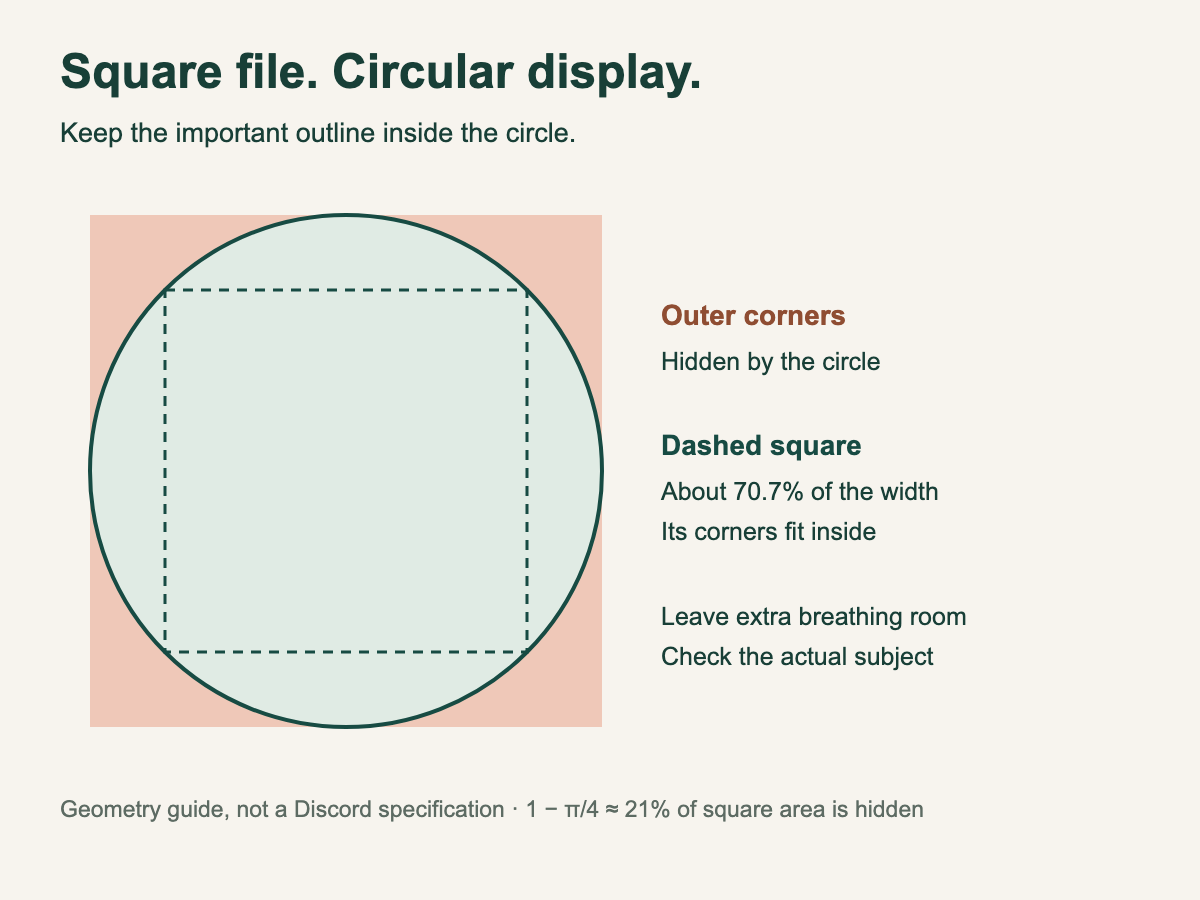
The guide is useful for rectangular logos and text. A circle does not protect the corners of a mark just because its width is smaller than the canvas. Faces and hairstyles have different outlines, so inspect the actual shape rather than treating a fixed percentage as a guarantee.
A practical check is to view the avatar at a small chat-like size, such as 32 or 40 pixels. These are inspection sizes, not upload requirements. If a face becomes too small or text becomes unreadable, crop closer or simplify the artwork even if every detail technically fits.
A short workflow for choosing the right fix
- Start with the original. If a wider version still exists, use that before generating anything. If you exported a destructive crop, our guide to uncropping a photo explains the difference between undo and invented new edges.
- Decide what must survive. For a headshot, that may be eyes, chin, and hairstyle. For a logo, it may be the whole mark and a readable word. Try a square crop and adjust its position first. If it works in the round display, stop there.
- Add space when repositioning cannot solve it. In an ordinary editor, place the source on a larger square canvas and scale it down proportionally. Choose a flat background for a logo or exact artwork. Transparent padding still needs checking against Discord's display background.
- Try expansion when a photographic border is distracting. Open the Photo Extender upload tool, upload the source, select 1:1, and use Both sides when you want a balanced extension. Review the generated framing before downloading. A target ratio alone does not guarantee the amount of headroom you need, particularly when the source is already square.
- Make the final check in Discord. Use the downloaded result as your avatar and inspect the visible circle before saving. If it is still too tight, pad the result in an editor or choose another source. Keep the source file so you can reverse the decision.
The controls above are for extending the background. Photo Extender does not provide a circular crop preview, automatic subject-detection crop controls, or batch avatar export. The circle diagrams in this article are explanatory images.
Discord's official profile instructions place avatar changes under User Settings → Profiles → Change Avatar on desktop, and Edit Profile on mobile. Confirm the appearance, then Apply and Save Changes. If you need a PNG for upload, use a format Discord supports rather than assuming every download format will work.
When expansion is the wrong choice
- You can already crop cleanly. Removing spare wall is simpler than generating more wall. An automatic crop can be convenient, but manually checking the circle is still worthwhile.
- The missing detail is evidence. Generated clothing, hair, or scenery is a guess. It does not recover a real moment outside the saved frame.
- The asset is a precise logo or commission. Padding protects the original design. AI may change lettering or small details, even if you only wanted a margin.
- The wider frame makes the subject unrecognizable. Keep a tighter headshot for chat and save the full composition for a larger profile image or banner.
Frequently asked questions
Why does Discord crop my profile picture even when it is square?
The square file and the visible circular avatar have different boundaries. Details near the square's corners can disappear in the circle. Center the important part and leave room around its outline; making the file square alone does not solve that.
Can a smart cropper keep the entire subject?
Sometimes, when the source has enough space and the target crop can contain the subject. Subject-aware cropping improves focal placement, but cannot add background. Check what a particular tool means by “smart”: ratio guides and subject detection are different features.
Can I fit the whole picture into a Discord avatar without AI?
Yes. Place the picture smaller on a square canvas with padding and check it inside a circular preview or Discord itself. Allow enough margin that the important corners fit too. The cost is a smaller subject and, depending on the background, a visible border.
Will selecting 1:1 in Photo Extender fix an already square portrait?
It sets the target shape, not a guaranteed safe margin. If the portrait is already square and tight, the result may still be tight. Use a larger padded canvas for precise control, or inspect an expanded result and adjust its final framing before upload.
Does AI expansion preserve my face exactly?
Do not assume it does. Inspect the face, hair, clothing, and background seams in the downloaded result. The existing example above illustrates a framing improvement, not a promise of identical pixels. Padding is the safer choice when exact likeness or artwork matters.
Give the subject room before the circle hides the edges
If a simple crop keeps cutting a useful detail, try extending the photographic background. Check the result at avatar size before you commit.
Try a wider frame →